Do you spend hours in front of a monitor or a TV? Do you feel discomfort in your eyes after long hours of staring into your computer monitor or playing computer games? If so, you might be suffering from digital eye strain.

Digital eye strain is the discomfort experienced by people after two or more hours in front of a digital screen. The discomfort is caused by long exposure to the blue-violet light (with wavelengths ranging from 380 to 500 nm), which are harmful to the retinas.

While it isn’t really an option to reduce the amount of time we look at our screens, especially for people whose jobs require them to look at digital displays throughout the day, there are ways to reduce the amount of blue light our eyes get exposed to, including the use of special lenses that deflect blue light.

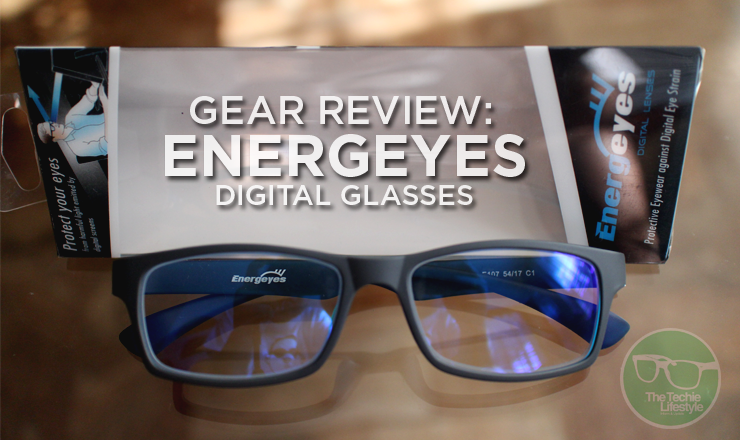
Singaporean brand Energeyes is a brand that offers an over the counter digital glasses that promises an affordable eye protection to consumers. We got our hands on a pair of Energeyes glasses and took it for a spin to test if it really helps in reducing digital eye strain.

WHAT’S IN THE BOX

Compared to glasses from your optometrist, the Energeyes digital glasses come in a very modest package. The product is neatly packaged in a triangular box made from folded transparent plastic.


The box has descriptive product specs printed on all sides and comes with a plastic cut-out that holds the glasses in place. The product doesn’t come with any paper work or even care instructions. Also, unlike other glasses, there’s no protective case or a cleaning cloth with the package.

DESIGN AND CONSTRUCTION

Whether your purpose of getting digital glasses is for preventive measures or as advised by a physician, it can’t be denied that glasses is also a form of fashion accessory. Therefore, design is always an important consideration when getting any form of eye wear.


Fortunately, Energeyes offers a wide variety of color and style combinations to fit anyone’s taste and face shape.

A large part of the product is made from plastic. The glasses’ frame can come in two different styles and a variety of colors, giving users the flexibility to choose the style that fits their personality. The glasses’ hinges have a metallic finish though we’re not sure if they’re made from real metal.


Judging on the overall weight of the product, I’m assuming even the lenses are made from plastic. The inner side of the lens looks very typical but the outer side appears to have a blue tint. The right side of the band bears the company logo while the left band is where the product code is printed.

USER EXPERIENCE

I’ve had the Energeyes glasses for a couple of weeks and during my time with the product, I noticed that it did indeed reduce the strain I felt in my eyes. I used to squint a lot whenever I stare into my laptop or monitor for extended periods of time and I noticed that there was a significant change after using the glasses.


Moreover, I also noticed that the glasses do improve contrast of images displayed on the screen. This is especially true for blacks and other dark colors which appear darker when viewed with the glasses.

As I mentioned earlier, the lens seems to be made from plastic and because of this, they’re a bit of a fingerprint magnet. So, you better have a cleaning cloth handy to clean the glasses before use. And while we’re in the topic of product care, I’d recommend getting a glass case to protect the Energeyes when putting it inside your bag.


Energeyes doesn’t offer any sizes for the glasses, so users better make sure that they fit the product before buying. Furthermore, the product doesn’t work for people who use prescription glasses as Energeyes don’t provide any form of visual correction for people with vision problems.

FINAL WORDS

When all things are said, the Energeyes digital glasses offers exactly what it promises to do. During my time with the product, there was really a noticeable improvement on the reduction of discomfort I experience when using digital screens for long periods of time.

I really like that Energeyes has provided users with a lot of option when it comes to the style and color so I can pick the glasses that fit my taste. However, I wish that the brand can extend this flexibility in the materials they use in constructing the glasses (like a metal version, even if it jacks the price up a little).

Having a case and cleaning cloth bundled with the product would also be nice, since it is almost imperative that the glasses have these accessories so it could last longer when it’s subjected to everyday use.


For those interested in getting a pair of Energeyes glasses, the product is available on the company’s website or from Ekotek kiosks nationwide for Php1,999 or around $50.

UPDATE: So it turns out the Energeyes package does come with some sort of case. Tucked underneath the triangular box of the glasses is a microfiber pouch that doubles as a cleaning cloth.

Connect with The Techie Lifestyle on your favorite social networking sites

Twitter Facebook Subscribe to RSS Feeds Google Plus Follow via Email

Almost everyone these days owns an external hard drive where they store their personal files from their entire music library to their collection of movies or TV series. While most storage solutions offer larger capacities or faster transfer rates, there are those who venture a different route.


WD’s My Passport Wireless is one such device that’s trying to fill the void for wireless external hard drives in the market. The hard drive is one of a few drives in the market that provides users with a way to transfer their files from their computers and laptops to a portable solution without the need to plug the drive into the PC using a cable.


Although it’s easy to assume that a wireless hard drive is a far superior option to the wired alternative, these storage solutions have features that are built with a specific consumer in mind and might not offer the best experience to everyone. In case you’re on the hunt for an external hard drive (to get yourself especially this holiday season) and you’re on the fence on spending more for a wireless drive, here’s our review of the WD My Passport Wirelessto help you out in making that decision whether to go wireless or not.

WHAT’S IN THE BOX


Compared to a typical wired external hard drive, the My Passport Wireless comes with a few more accessories out of the box. The device comes with the usual USB to micro USB type B cable for syncing and charging as well as the usual set of paper works. On top of these, the My Passport Wireless also comes with its own charger with two adapters that’s great if you’re always traveling out of the country.

DESIGN AND CONSTRUCTION

The My Passport Wireless sports the same design language that has been in use with some of the company’s recent products. The hard drive is made completely out of plastic and sports a two-tone design. The bottom and sides of the device are made from a single piece of gray plastic while the top plate is colored in black.


A small plate at the top of the device bears the company’s logo as well as two LED indicator lights for the battery and the Wi-Fi connection. Adjacent to this plate is where you’ll find an SD card slot, which has a spring-loaded mechanism. The top edge features two buttons and the USB connector. The button at the top-right edge powers up/down the device while the other button at the top-left edge activates the drive’s wireless capabilities.


The drive has a built-in battery that supports its Wi-Fi functions so the My Passport Wireless is a tad thicker than most wired hard drives. There are also four rubber feet at the bottom of the device making sure that it stays in place when you place it on a flat surface.

WIRELESS SETUP AND OPERATION

There are several ways to move files wirelessly using the WD My Passport Wireless. When using a PC or Mac, users need  to first connect to the wireless network that the device automatically creates before accessing the contents of the drive. It’s important to note that because of this process, internet connection may temporarily be disabled until the drive has been properly configured to allow your laptop or Mac to connect to another network.


To access the device settings using a laptop, users need to open a browser and type the URL of the drive (http://mypassport) or the IP address of the device. Once there, users can easily adjust various settings of the device including setting up a password, connecting to another wireless network and locking the USB port on the device to name a few (a feature called Drive Lock).


Accessing the contents of the drive can be done in a number of ways. Once the device is connected, the contents can be viewed using Windows Explorer or Mac’s Finder. Based on our test, it appears this option only allows for moving files back and forth and doesn’t really allow streaming of content. The My Passport Wireless also appears in the Network section, which is where users will be able to stream content.


For those planning to use the Wireless Passport to move files back and forth from a mobile device, an App is required before anything can be done on the device.  The settings are pretty much the same as in the Web/Explorer/Finder GUI on Windows and Mac but are arranged in a more finger-friendly manner.


The mobile app allows streaming content from the Wireless Passport but it’s good to note that it only provides support for select video formats. A third-party media player app (In our case VLC) is required to play videos whose formats fall beyond what the app supports.

PERFORMANCE

As a wireless external hard drive, there are two things we’d like to know about the WD My Passport Wireless: how fast is it in transferring data (either wired or wirelessly) and how well and stable it performs when using Wi-Fi.

We had the Wireless Passport for several weeks and we put the drive to the test by running some benchmarking software to know how fast it is as a storage device. We used ATTO’s app as well as Crystal Disk and got these values.


We also tried transferring a 3GB file thru a wired connection and it took the drive under two minutes for the file to be completely copied from our laptop to the drive.

When it comes to wireless transfer speeds, the My Passport Wireless is a bit of a hit and miss. During our test, the drive was able to stream a 3GB Full HD movie without issues. The app was able to render the video without any noticeable compression though there were instances that the screen goes gray while images become pixelated for a short time.

While video streaming is okay for the most part, transferring large files wirelessly is a different story. Images and music files can be wirelessly transferred from one source to another without much difficulty, larger files tend to take a considerable amount of time. We tried transferring a couple of mkv files to the drive and we literally didn’t had the time to wait hours for the transfer to finish.


Our biggest gripe about the WD My Passport Wireless is its battery life. We’re not sure if there was an issue with the review unit that we got, but the device’s battery only lasted a few hours especially when doing video streaming. Although, you can connect the drive directly into a wall outlet using the included charger, it actually defeats the purpose of having a wireless storage device.

FINAL WORDS

When it comes to portable storage, only a few brands can match WD in terms of reliability, innovation and of course years of experience. The WD My Passport Wireless is a great representation of WD’s expertise, which improves their already trusted line of external hard drives.

We really like how the drive is designed, despite the larger than usual dimensions. The My Passport Wireless is an excellent product if you’re planning to do some wireless streaming to your mobile device or your laptop. The built-in card reader is also great for those who like a convenient way of moving files from their cameras to their computer or mobile device.

However, its poor battery life may pose a major hurdle if you plan to stream videos for long periods of time.


The WD My Passport Wireless also had issues with transferring large files from one location to another. Having said this, we feel that the Wireless Passport is a product mostly for people who want convenience over utility.

Its wireless function is mostly useful for streaming content and not really for transferring files over the air (although you can sometimes get away with it). We can see the My Passport Wireless serving as a content hub for family use where members of the family can store and access content.


At around $150 for the 1TB version, the WD My Passport Wireless is a bit pricey compared to ordinary 1TB drives in the market. But for those who value convenience above everything, this product will certainly be a great deal. 


Connect with The Techie Lifestyle on your favorite social networking sites

Twitter Facebook Subscribe to RSS Feeds Google Plus Follow via Email

The announcement of the iPad Pro signified a new age for the iPad in which the tablet becomes a major productivity device that could potentially replace your laptop. While the top-of-the-line Apple slate is quite expensive for the average tablet user and could easily cost as much as a full-featured laptop, the Cupertino company’s iPad Air 2 offers a more affordable alternative without compromising on productivity.


The iPad Air 2 has been in the market for over a year now, which means that third party manufacturers have ample amount of time to create accessories for the device. These include keyboards of all types that allow the iPad Air to become a productivity device for creating documents, presentations and spreadsheets.

However, while the selection of Bluetooth keyboards for the iPad Air 2 might be extensive, a lot of them are also quite expensive or underwhelming. So, is there a BT keyboard out there that offers great value for money?

We take a look at Seenda’s Bluetooth Keyboard case for the iPad Air 2 to see if it can be the perfect productivity partner to get more work done on the iPad.

DESIGN AND CONSTRUCTION

The Seenda Bluetooth keyboard is composed of two parts: the folio part with the snap on case that holds the iPad and the removable keyboard.

The folio case has four folds that allow the case to transform from a notebook style case for the tablet into a stand that props up the iPad to be used either for viewing content or working with the Bluetooth keyboard.


By the looks of it, a form of textured faux leather was used in the construction of the Seenda case. There are two diagonal silver accents that run across the outside of the case as well as a chrome-plated Seenda branding at the back of the cover that give it a minimalist yet tasteful feature.

The inner lining of the case is covered with the same textured faux leather material but this time, it’s treated with a matte gray finish, possibly to give it more grip for the keyboard and the tablet. The plastic snap on case is very thin, which allows your iPad Air 2 to keep its thin profile. The case also has a small rubber strip at the bottom that prevents slippage when you prop up the tablet.


The Seenda BT Keyboard case has specific cut-outs for the rear camera, the volume buttons, the power/sleep button, the bottom speakers and the lightning port, which should give users easy access to users even when using third party accessories.

THE KEYBOARD

Of course, the star of this device is the keyboard. Just like the cover, the keyboard is covered in the same textured faux leather material and is bound by a small strip of black plastic

The board uses island-style keys that are made from plastic. Although the amount of space in the keyboard isn’t as generous as those from full-size devices, there is enough space between keys for a comfortable typing experience.


The keyboard works fine with different types of devices including Android phones and tablets as well as Windows smartphones and computers. This adds flexibility to the Bluetooth keyboard although you can only connect one device at a time and there’s no way for you to switch between devices compared to other keyboards.

The keys have enough travel that provide ample tactile feedback. However, there were times that the device failed to register our keystrokes that lead to us misspelling words several times during our tests.


Also, unlike other keyboard cases in the market, the Seenda BT keyboard is detachable allowing for more flexibility when it comes to the tablet’s viewing angles. There are small magnets at the back of the keyboard, which keeps it in place when it’s not in use.

However, even these magnets are not enough to keep the keyboard in place if you try to use the case on your lap. Having said this, the Seenda BT keyboard is only meant to be used on a flat and stable surface, which limits its usability as a productive device.

SPECIAL FEATURES

In contrast to Bluetooth keyboards from more popular brands like Logitech or Belkin, Seenda has decided to use a different layout by placing the keys at the top of the board and giving room for a small palm rest at the bottom.


The palm rest adds a bit of comfort to the typing experience. In fact, the typing experience on the Seenda keyboard can at times be as close to that of a laptop keyboard that there were times that we were trying to touch the area where a touchpad was supposed to be located.

Pairing the device is an easy affair. After switching on the keyboard, users simply need press the pairing button at the right and input the four-digit code that will be displayed on the tablet into the keyboard and press enter.

The Seenda keyboard also has dedicated number keys at the top making it very convenient to input numbers in spreadsheets or documents. On top of that, the numeric keys have a secondary function that can be activated when the key is pressed with the Fn key.


A manual switch is also located at the right portion of the keyboard which you flick back and forth to turn the keyboard on and off. A few millimeters from the power switch is a small strip with indicator lights for the caps lock, the battery status indicator and the Bluetooth pairing indicator.

Final Words

When it comes to being productive using a tablet, a keyboard is the best way to get more work done. There are a lot of options in this category including those from more established brands like Logitech, Kensington and Belkin. However, products from these brands rarely go below $50. This is where the Seenda Bluetooth keyboard comes in with its sub $40 price tag.

Overall, the Seenda Bluetooth keyboard offers quite a nice package with a minimalist yet feature-packed design. We liked that keys are placed with enough space to make for a comfortable typing experience and that there’s a dedicated number row with a special function. Battery life was also commendable, which in our case took several weeks before needing a recharge.

However, the device is not without any shortcomings. Our biggest issue with the Seenda BT keyboard is that you can’t really use it on your lap when typing, which greatly limits the amount of work that can be done on the iPad. There were also times that the keys were not as responsive as we’d like. Lastly, we didn’t like that the Bluetooth connection automatically shuts down after a certain amount of time and we have no control over it.


With all things said, the Seenda Bluetooth keyboard case remains an excellent choice for iPad Air 2 owners who want to get a case/keyboard combo that does what it’s supposed to do without costing too much.

Connect with The Techie Lifestyle on your favorite social networking sites

Twitter Facebook Subscribe to RSS Feeds Google Plus Follow via Email

Proudly Filipino brand Ekotek has been in the market since 2012 offering consumers with mobile phone accessories and other consumer electronics. These past couple of years, the company has decided to make a leap to the smartphone and tablet industry by creating their own line of smart devices.


For their smartphones and tablets, Ekotek has decided to follow the same principles it has applied on its line of phone accessories – affordability matched with excellent customer service. In fact, the company prides itself by being the only local manufacturer to offer a 14-day replacement policy.

One of the company’s newest product in the market which is supposed to benefit from these extended services is their newest tablet – the Ekotab Encore 2u. It’s meant to be an upgrade to the original Encore 2 and as such boasts improved specs and faces tough competition not only from foreign brands but also from local names like Cherry Mobile, Cloudphone and Starmobile.

Does it have what it takes to set itself apart from the competition? We took the Encore 2u for a test drive to find out if the tablet is capable of winning people’s hearts over. Here are the results of our review.

Click to Expand Specifications

BODY Dimensions 188.5*108.3*8.25mm
Weight 268g
DISPLAY/OPTICS Display Type P+G Capacitive Touch Screen 
Display Size 7 inches
Cameras 2MP + VGA
PERFORMANCE Operating System Android 4.4.2
Chipset Allwinner A33
Processor 1.5GHz quad-core
Graphics Mali400 MP2
Internal, RAM 8GB ROM, 512MB RAM
Card slot Yes, microSD
CONNECTIVITY WLAN Yes
Bluetooth Yes
NFC No
Infrared port No
USB Yes, micro-USB
Battery Rating 2500mAh, Li-polymer
GPS Yes
Price Php2,999 (~$65)

WHAT'S IN THE BOX

Upon purchasing an Encore 2u, users will get of course the device plus a few accessories to help the device function. These include a sync and charge cable, a wall charger, and a USB OTG cable.


The package also comes with the usual mix of paper work including the warranty card and a quick start guide. Also included in the box are two Ekotek stickers so you can stick it into your other belongings to show to other people that you’re a proud Encore 2u owner.

DESIGN AND CONSTRUCTION

There’s one word that best describes the design of the Encore 2u – simple. In fact, some would even say that it’s a little too simple.


The front is occupied by the 7-inch screen, and there’s a little hole where the front-camera peeps into. The bezels around the display are a bit thick based on today’s standards and in contrast to other brands, the tablet doesn’t have a special layer of protection over the screen, so people planning to get the tablet should also consider getting some sort of screen protection.

When it comes to the buttons and ports, Ekotek has decided to put all the Encore 2u’s connectivity and physical buttons to the right side of the device (that is, if you hold it horizontally with the front camera located at the top right corner). Starting from the top edge you have the microphone pinhole, the power/lock button, a 3.5mm headphone jack, the micro-USB port and the volume rocker that lays proximal to the microSD card slot.


Flipping the device, the 2MP camera that sits on the upper right corner and protrudes slightly. Opposite to the camera on the lower right corner is a reset pinhole, while at the upper left corner is where you’ll find the speaker.

The entire slate is made from plastic. By the looks of it, Ekotek used a type of polycarbonate plastic that has the same texture as those used on earlier Nokia Lumia models which feels nice to the touch. The edges of the device are also curved making it really comfortable to hold; and we also found the plastic material is able to hold itself firm against fingerprints. During our two-week test was able to keep itself clean and scratch-free.  


Looking at the design and build quality in general, people who are looking for a utilitarian device and don’t mind much about having a flashy design will love the Encore 2u. On the other hand, those who want a device to flaunt to their friends in party will have to look elsewhere.

AUDIO, VISUALS AND OPTICS

As a 7-inch tablet, we reckon that a part of the Encore 2u’s life will be devoted to playing different types of media. In the audio, visuals and optics department, the tablet is able to tick some check boxes while leave the rest blank.

Let’s look at the positives first. The tablet’s audio, though not perfect, sounds okay. There’s a bit of distortion if you try to crank up the volume, but in general, the audio from the slate is clear and surprisingly not tinny considering the price of the device.


Unfortunately, the same can’t be said for the camera and display departments.

The Encore 2u’s 7-inch display has a resolution of 1024 x 600 pixels at a 16:9 aspect ratio. Even though we were already expecting Ekotek to cut some corners to keep the tablet’s price down, we really wished that it wouldn’t be the display. Just like in eating, people consume content with their eyes, and a sub par display has an adverse effect in user experience.

Even when we push the display’s brightness to its maximum level, images viewed on the screen still looks a bit dim and dull; and viewing angles aren’t good either.

Looking at the images taken with the rear camera, you’ll realize that the device is meant to be used as a replacement for a real camera or maybe not even a camera phone. Photos taken by the 2MP has washed out colors and suffer from blooming.


Moreover, the camera doesn’t have autofocus or touch focus so you can’t really take those creative shots and there’s a huge probability that majority of your photos (especially those with moving people) will have blurry parts. Video calls might also be a no-no because the tablet only has a VGA camera (0.3MP).

SOFTWARE AND UI

The Encore 2u runs on Android 4.4.2 and is vanilla UI through and through. Right out of the box, you’ll notice that the device is unadulterated as it gets with almost no bloatware – which we really like. In fact, you can say that it’s like a Nexus or Android One device in terms of user interface; and even the wallpapers are those default on Android.


The downside with the UI is that it’s also constrained by the limitations of the OS, a problem solved by custom software installed by other manufacturers. This means there’s no gesture controls, no software-based photo improving features and the likes. Fortunately, most of these features can be had through apps on Google Play, so at the very least there’s a work around if you want a specific feature that’s not default on the operating system.


As with most Android tablets, navigation is done through on-screen buttons. But unlike slates from other brands, the Encore 2u adds a few more buttons including one to make a screenshot and two virtual volume buttons.

PERFORMANCE

The Ecotab Encore 2u boasts an Allwinner A33 1.5GHz quad-core processor which is complemented by a Mali400 MP2 GPU and half a gig of RAM. During our test, we didn’t really had crash and lag issues with the device.

Because Ekotek didn’t use much of the on-board storage for its Android customizations, Encore 2u users will enjoy more space for their apps and media compared to other models from other manufacturers. Out of the 8GB advertised memory, users will be able to enjoy around 5.5GB out of the box.


We also tried playing a 3D game on the device and so far it was able to handle games that don’t require much GPU and CPU prowess. Casual gamers and maybe even intermediate gamers will be happy or at least content with using the tablet.

In terms of synthetic benchmark scores, the Encore 2u was able to get 303 (single-core) and 866 (multi-core) on Geekbench and around 16,600 on Antutu. They’re not that high, especially because the device just has 512MB of RAM but if you’re not planning on pushing the device to its limit and you’re just using it for normal tasks like web browsing, then you’ll be fine.


As for the battery, don’t expect the tablet to last more than a day. The 2500mAh Li-Polymer unit on the device last less than 5 hours on normal to heavy use but can last close to 20 hours if you’re using it conservatively.

FINAL WORDS

After spending two weeks with the Ekotek Encore 2u, we realized that this device isn’t meant for everyone. The tablet has some good points to brag about but there’s room for growth if it wants to compete with other brands to get the attention of a much broader audience.

On paper, the Ekotab Encore 2u doesn’t look like something worth considering. However, when you factor in the price (Php 2,999 or approximately $65), everything seems to make sense.
It received plus points for its speakers that produce acceptable sound quality, its clean and almost bloatware-free user interface, and Ekotek’s nice choice of construction materials. Nonetheless, there’s still room for improvement when it comes to its display and camera as well as the look and design of its hardware.

On paper, the Ekotab Encore 2u doesn’t look like something worth considering. However, when you factor in the price (Php 2,999 or approximately $65), everything seems to make sense. For us, it looks like the tablet isn’t really meant for young professionals who want power and performance but is meant to be a starter device for those who’s just crossing the digital divide.

It might not be the best gadget for power users, but it’s a solid choice as a gift (especially this coming holidays) maybe to your kid or to your parents/grandparents as a way to introduce them to smart devices without burning a hole in your wallet. 


Connect with The Techie Lifestyle on your favorite social networking sites

Twitter Facebook Subscribe to RSS Feeds Google Plus Follow via Email
2013-2015 © The Techie Lifestyle
Planer theme
Powered by Jasper Roberts Consulting - Widget